Apple Iphone exchange email account setup for pchelper916 mailbox accounts
Set up Exchange ActiveSync on your iPhone, iPad, or Apple Vision Pro
Exchange ActiveSync lets you sync your Exchange account Mail, Contacts, Calendars, Reminders, and Notes with your Apple device.
If you're not in a familiar location, you must first turn off Stolen Device Protection before you configure an Exchange account, and then re-enable it after configuration is complete. Learn more about Stolen Device Protection
Add and configure your Exchange Account
You can add your Exchange account in the Mail app on your iPhone, iPad, or Apple Vision Pro.
Enter your Exchange email address
-
Go to Settings, then tap Apps.
-
Tap Mail.
-
On iPhone or iPad, tap Mail Accounts.
-
On Apple Vision Pro, tap Accounts.
-
-
Tap Mail Accounts, Tap Add Account, tap choose from a list , tap Microsoft Exchange.
-
Enter your email address, then tap Next. You can also enter an account description.
-
Tap Sign In to automatically discover your Exchange account information.
-
Enter your email password, then tap Next.
-
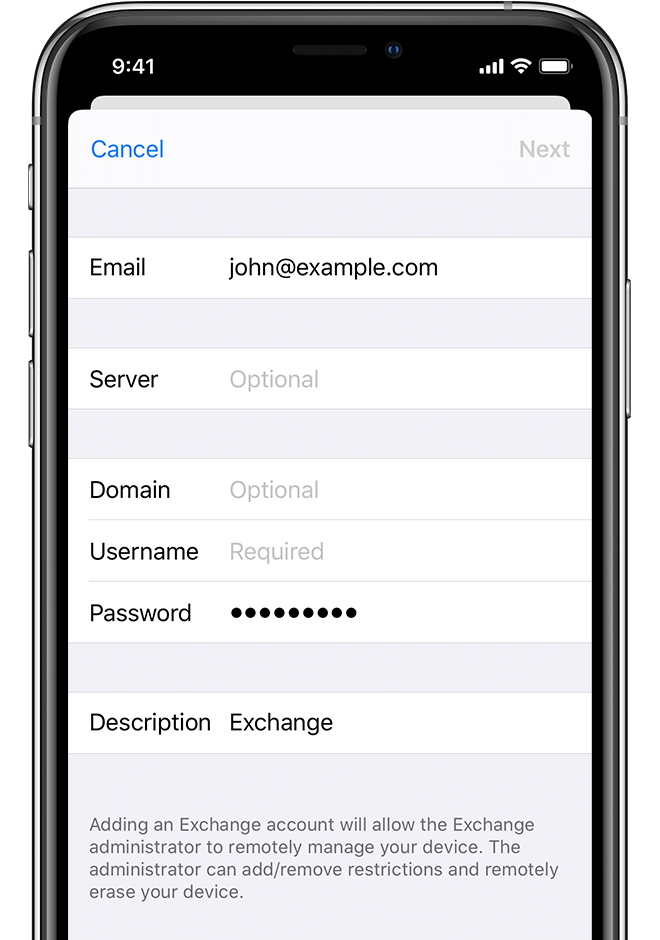
Tap Configure Manually to set up your account with Basic authentication.
-
Enter your email password, then tap Next.
-
Go to Settings, then tap Apps.
-
Tap Mail.
-
On iPhone or iPad, tap Mail Accounts.
-
On Apple Vision Pro, tap Accounts.
-
-
Tap your Exchange account, then choose the settings you want to change.
-
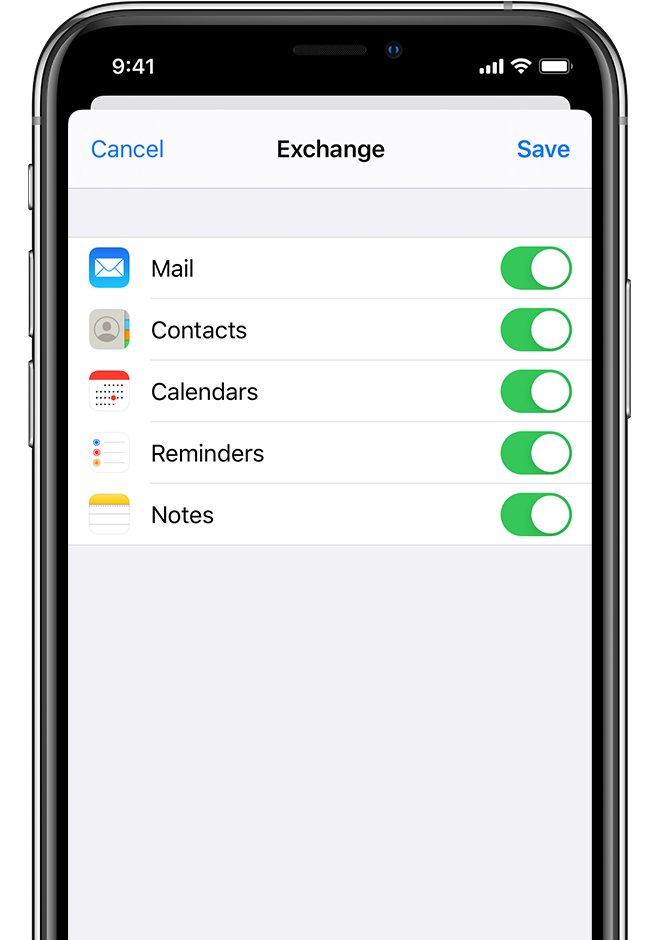
Turn on or off which apps you want to sync.
-
Tap Mail Days to Sync to change the number of days Mail will sync with your Exchange mailbox.*
-
Tap Automatic Reply to set up automatic out-of-office replies.
-
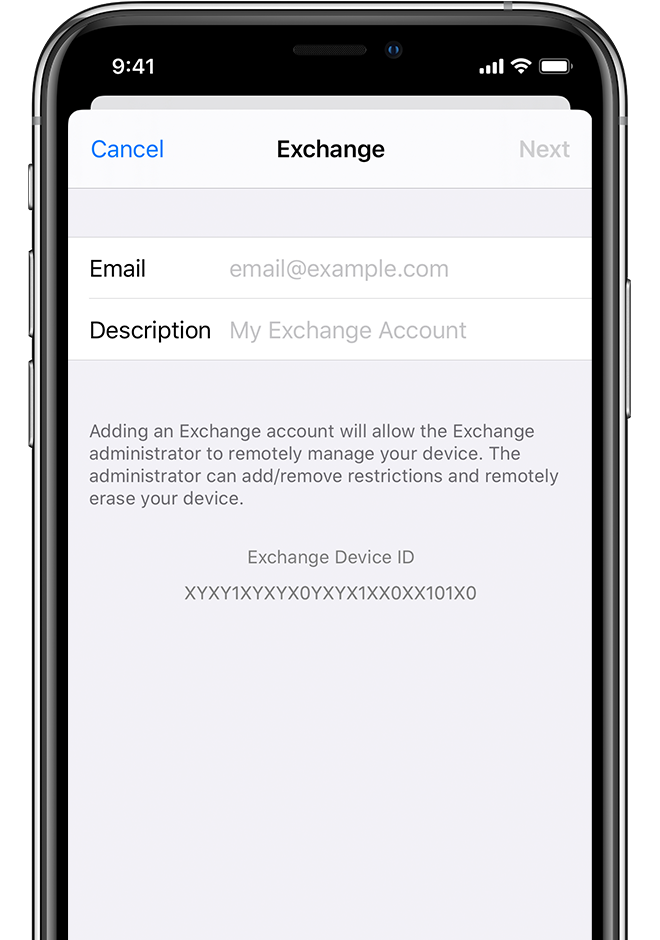
Sign in to configure your Exchange account
After you enter your email address, you'll be prompted to sign in to configure your Exchange account either automatically or through manual configuration.
Sign in automatically
If your account uses modern authentication, you'll be guided through a custom authentication workflow.
Configure your account manually
You might also be prompted to enter additional server information, which you can get from your Exchange Server administrator.
put server1.pchelper916.com into server
put email address into username
put email password into password
Sync your content
After you configure your Exchange account, you can sync Mail, Contacts, Calendars, Reminders, and Notes. Turn on the data you want to sync, then tap Save.
Edit your Exchange account settings
To find and change advanced settings such as SSL and S/MIME, tap your account name, then tap Advanced Settings.
Contact Our Team
If you still can't find an answer to what you're looking for, or you have a specific question, open a new ticket and we'd be happy to help!
Contact Us